
Download Zoom Meetings – Free Video Conferencing, Secure Virtual Meetings
Overview
Zoom Meetings has become the go‑to platform for individuals and businesses that need a reliable, high‑quality video‑conferencing solution. Launched as a simple free tool for virtual meetings, Zoom now offers a robust freemium model with optional paid plans that unlock advanced functionalities such as cloud recording, large‑gallery view, and admin‑level controls. The interface is deliberately clean, allowing users to schedule, join, or host meetings with just a few clicks.
Whether you are connecting with a client across the globe, conducting a webinar for hundreds of attendees, or catching up with friends on a weekend, Zoom delivers HD video, crystal‑clear audio, and a suite of collaboration tools—including screen sharing, virtual backgrounds, and live transcription. Its cross‑platform synchronization means you can start a meeting on a Windows laptop, continue it on an iPhone, and finish on a macOS desktop without missing a beat. While the free tier caps group calls at 40 minutes, one‑to‑one conversations remain unlimited, making Zoom a flexible solution for both casual users and enterprise‑level teams.
In a market crowded with Microsoft Teams, Skype, and Jio Meet, Zoom’s focus on simplicity, performance, and accessibility has helped it grow into one of the most popular virtual communication apps worldwide.
Key Features of Zoom Meetings
Zoom’s feature set is designed to cover every stage of a virtual interaction, from planning to post‑meeting follow‑up. The platform’s strength lies in its ability to blend powerful collaboration tools with an intuitive user experience. Below is a curated list of the most frequently used capabilities that set Zoom apart from competing video‑call services.
- HD Video & Audio: Supports up to 1080p video (depending on hardware) and high‑fidelity audio with noise suppression.
- Screen Sharing & Annotation: Share entire screens or specific applications and use real‑time annotation tools for collaborative editing.
- Virtual Backgrounds & Touch‑Up Filters: Replace your background or smooth out lighting without a green screen.
- Breakout Rooms: Split large meetings into smaller, focused discussion groups with automatic or manual assignment.
- Webinar Hosting: Host up to 10,000 attendees in a webinar format, complete with Q&A, polling, and registration.
- Live Transcription & Closed Captioning: Automatic speech‑to‑text for real‑time subtitles, improving accessibility.
- Recording Options: Local recording (free) and cloud recording (paid) with searchable transcripts.
- Integrated Calendar Sync: Sync meetings with Google Calendar, Outlook, or iCal for seamless scheduling.
- Security Controls: End‑to‑end encryption, waiting rooms, host controls, and meeting passwords to protect sessions.
- Cross‑Platform Support: Native apps for Windows, macOS, Linux, iOS, Android, and a fully functional web client.
How to Install and Use Zoom Meetings
Getting started with Zoom is straightforward, whether you prefer a desktop client or a browser‑based experience. Follow these steps to download, install, and host your first meeting in under five minutes.
Desktop Installation (Windows/macOS/Linux)
- Visit the official Zoom download page at zoom.us/download.
- Click “Download” under the “Zoom Client for Meetings” section. The installer will automatically detect your operating system.
- Run the installer and follow the on‑screen prompts. On macOS you may need to allow the app in System Preferences > Security & Privacy.
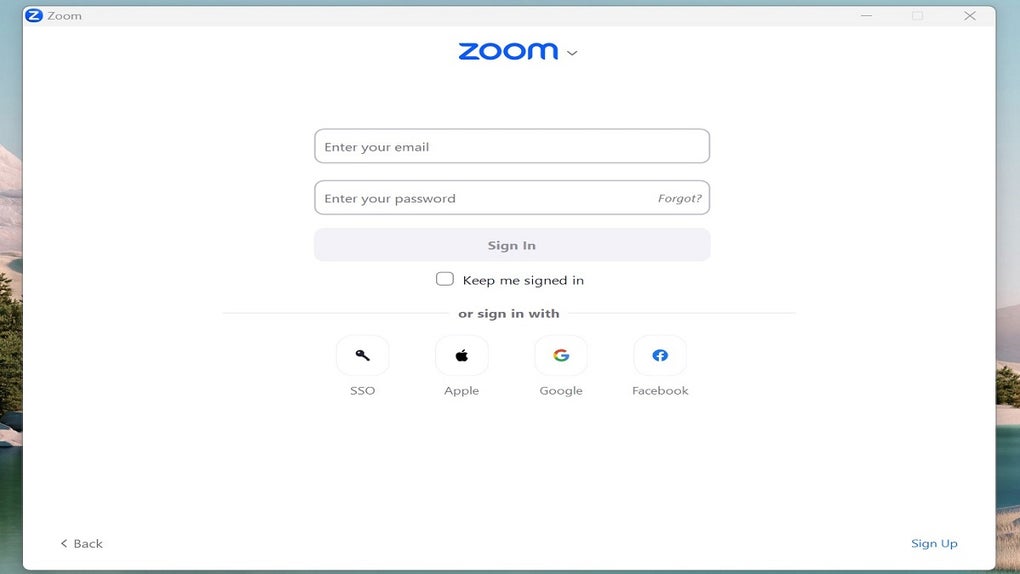
- After installation, launch Zoom. You can sign up with an email address, Google, or SSO, or simply click “Join a Meeting” to enter a meeting ID without an account.
Mobile Installation (iOS/Android)
- Open the App Store (iOS) or Google Play Store (Android).
- Search for “Zoom Cloud Meetings” and tap “Install.”
- Once installed, open the app, sign in, or join a meeting directly using the meeting link or ID.
First‑Time Use
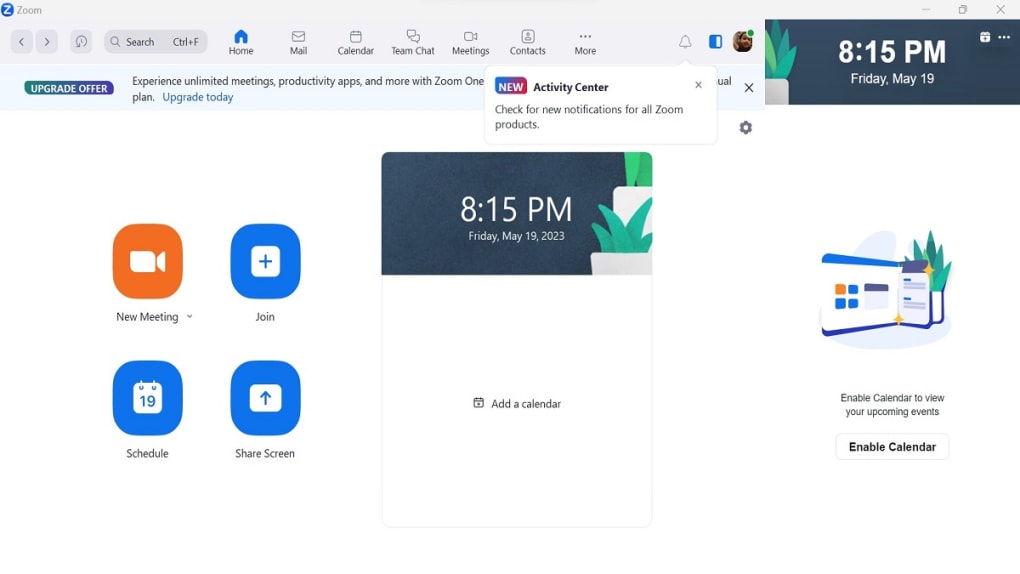
After logging in, the home screen displays five main actions: New Meeting, Join, Schedule, Share Screen, and Chat. To schedule a meeting, click “Schedule,” set the date, time, and security options (password, waiting room), and save. The meeting link is automatically added to your calendar.
When you start a meeting, you’ll see the control toolbar at the bottom, allowing you to mute/unmute, start/stop video, share screen, record, and manage participants. For recurring meetings, enable “Recurring meeting” during scheduling to reuse the same ID and settings. The intuitive layout means even first‑time users can host professional‑looking calls with minimal preparation.
Compatibility, Pros & Cons
Zoom Meetings runs natively on Windows 10/11, macOS 10.13 or later, major Linux distributions, iOS 11+, Android 5.0+, and offers a fully featured web client that works in Chrome, Edge, Firefox, and Safari. This extensive OS coverage ensures you can stay connected whether you’re on a desktop workstation, a laptop on the go, or a mobile device.
Pros
- Free tier supports up to 100 participants and unlimited one‑to‑one calls.
- High‑definition video and audio with adaptive bandwidth management.
- Simple, clean interface that reduces the learning curve.
- Robust security features such as waiting rooms, passwords, and encryption.
- Rich set of collaboration tools (screen share, whiteboard, breakout rooms).
- Cross‑platform syncing enables seamless transitions between devices.
Cons
- Free plan limits group meetings to 40 minutes, which can interrupt longer sessions.
- Advanced features (cloud recording, large webinars) require paid subscriptions.
- Occasional performance hiccups on low‑end hardware or unstable internet connections.
- Some organizations report “Zoom fatigue” due to prolonged video usage.
Frequently Asked Questions & Final Verdict
Is Zoom Meetings really free for large groups?
Zoom’s free tier allows up to 100 participants in a group call, but each session is limited to 40 minutes. You can start a new meeting immediately after the limit is reached, making it suitable for short workshops or recurring classes.
Can I join a Zoom meeting without creating an account?
Yes. If you have a meeting link or ID and password, you can join directly from the Zoom client or web browser without signing up. However, creating a free account unlocks scheduling and personal meeting ID features.
What security measures does Zoom provide?
Zoom offers end‑to‑end encryption (available on paid plans), meeting passwords, waiting rooms, host‑only screen sharing, and the ability to lock meetings after all participants have joined. These controls help prevent unwanted intrusions.
How does Zoom compare to Microsoft Teams for video calls?
Zoom focuses primarily on video conferencing with a lightweight UI, while Teams integrates deeper with Microsoft 365 for chat, file collaboration, and project management. For pure video meetings, many users find Zoom’s interface faster and more reliable.
Is cloud recording available on the free plan?
No. Free users can record meetings locally to their device. Cloud recording, searchable transcripts, and advanced storage options are reserved for paid subscriptions.
Final Verdict
Zoom Meetings stands out as a secure, versatile, and user‑friendly video‑conferencing solution that works across virtually every device you own. The free version is generous enough for individuals, freelancers, and small teams, while the tiered paid plans scale effortlessly for enterprises that need advanced admin controls, larger participant caps, and cloud‑based recording. Its clean UI, reliable performance, and extensive feature set make it a top choice in a crowded market. If you’re looking for a tool that lets you host a 100‑person webinar, run breakout sessions for a classroom, or simply catch up with a friend on a mobile phone, Zoom delivers a consistent experience that feels both professional and approachable. Click the button below to download Zoom Meetings and start your first meeting in seconds—no credit card required.







